In the Gekko Hours app, you can add your working hours manually or track them directly using the timer. In this article, we’ll explain how to record your hours and view an overview of the hours you’ve worked.
Adding hours or starting the timer
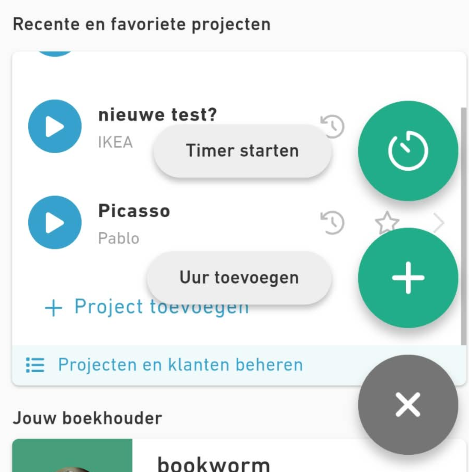
From the dashboard, you can easily record new hours. Tap the plus icon in the bottom-right corner. You’ll then see two options:
- Add hours: manually add hours you’ve already worked.
- Start timer: start a timer to track your working time as you go.
Tracking your hours with the timer
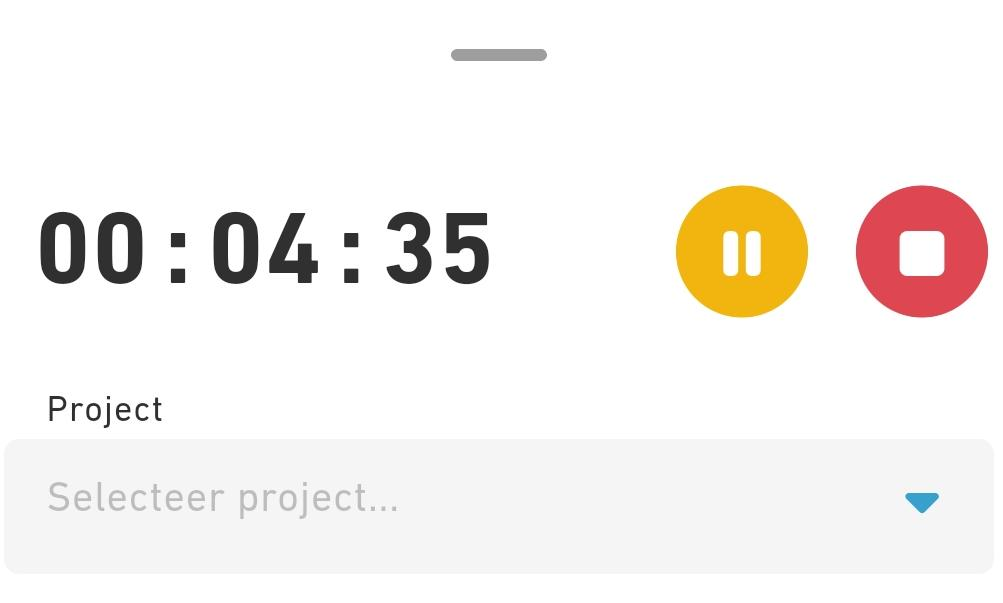
When you start the timer, you can select a project to assign your working hours to.
While you’re working, you can pause the timer at any time. Once you’ve finished your work, simply stop the timer.
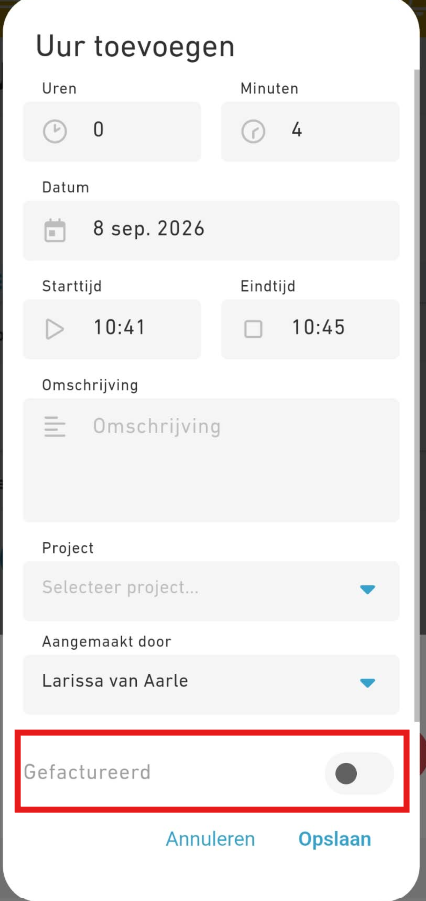
After stopping the timer, you can still make changes to the time entry if needed. For example, you can:
- add a description;
- adjust the recorded start or end time;
- mark the hours as Invoiced;
- it is also possible to mark your hours as invoiced.
Adjusting the start or end time
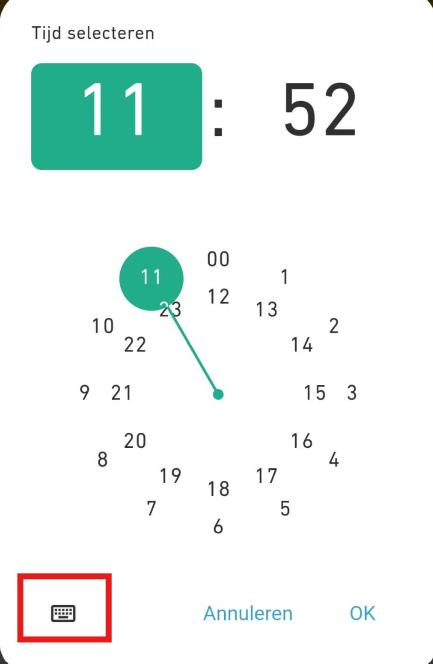
If you want to change the start or end time of a time entry, tap the time you want to adjust.
A clock will appear, allowing you to select the correct time.
If you prefer not to use the clock, you can also enter the time manually; tap the keyboard icon in the bottom-left corner.
Viewing an overview of your working hours
To see an overview of your recorded hours, tap the circle at the left top of the dashboard or tap 'See all hours'.
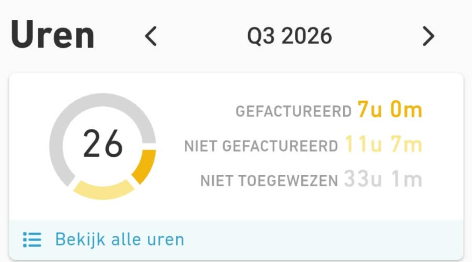
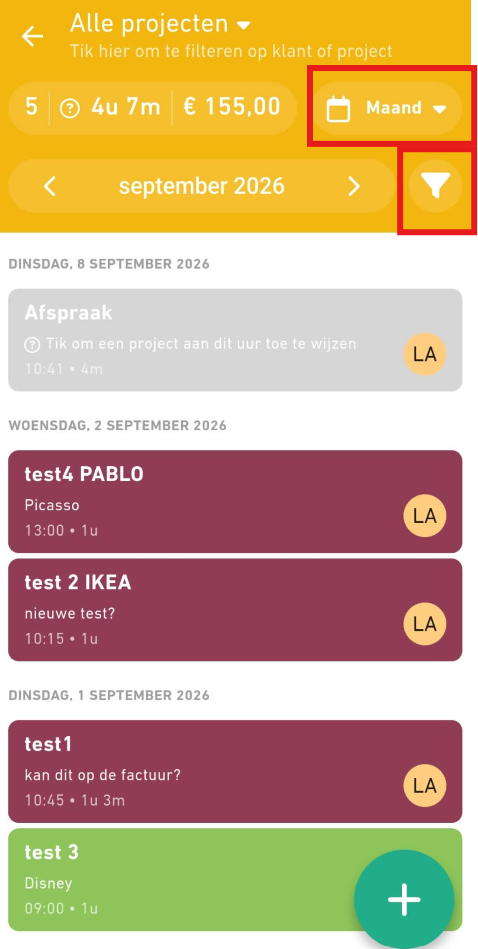
You can then choose in the top right how you want to view your working hours:
- by day;
- by week;
- by month.
Gekko Premium users can also select a custom date range.
Filtering your hours
If you only want to see specific hours in your overview, use the filter icon.
For example, you can use the filters to display only the hours assigned to a specific project or user (team member).
Was this article helpful?
That’s Great!
Thank you for your feedback
Sorry! We couldn't be helpful
Thank you for your feedback
Feedback sent
We appreciate your effort and will try to fix the article